Skip to content
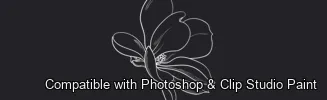
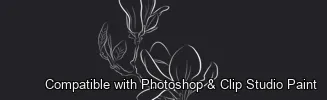
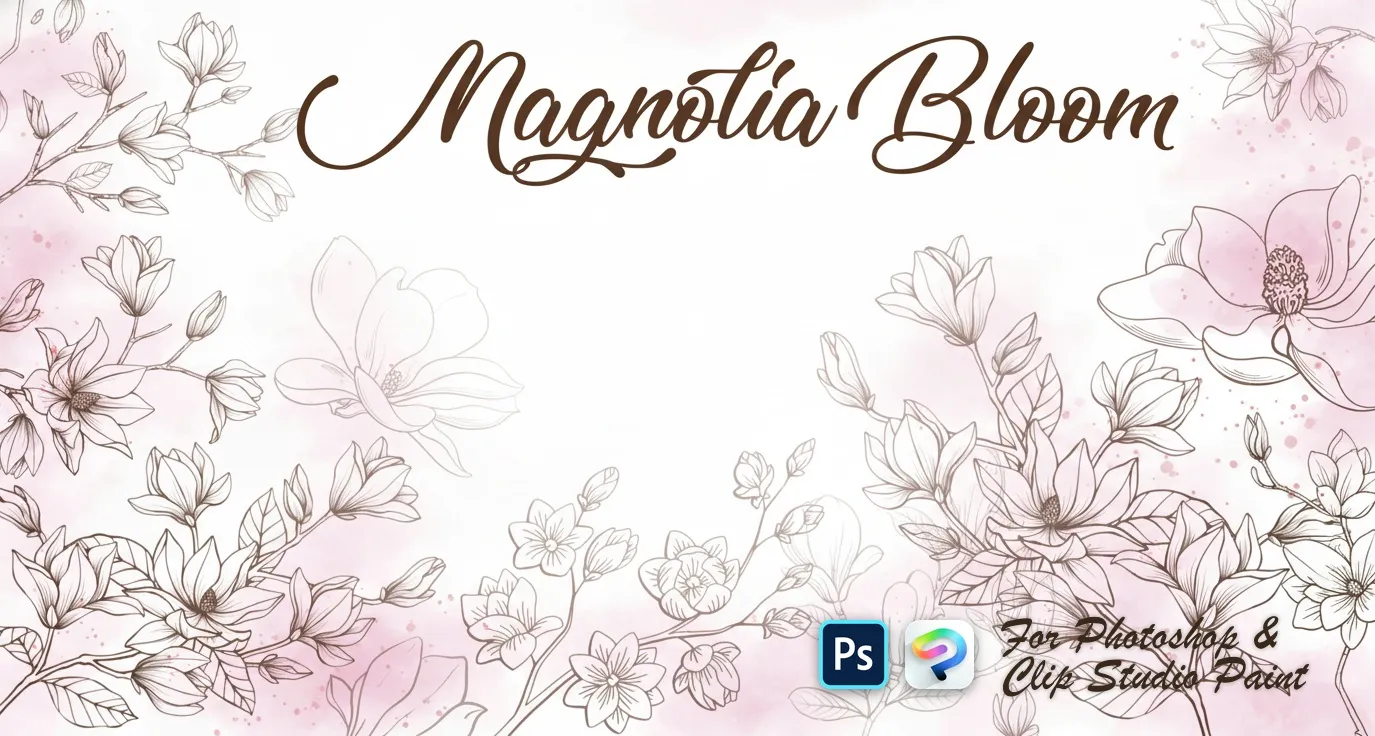
Magnolia Bloom Photoshop & Clip Studio Paint brush set cover
.abr · PC & Mac TattooFlowersPattern

Magnolia Bloom Photoshop & Clip Studio Paint Brushes

B by the Brusher team

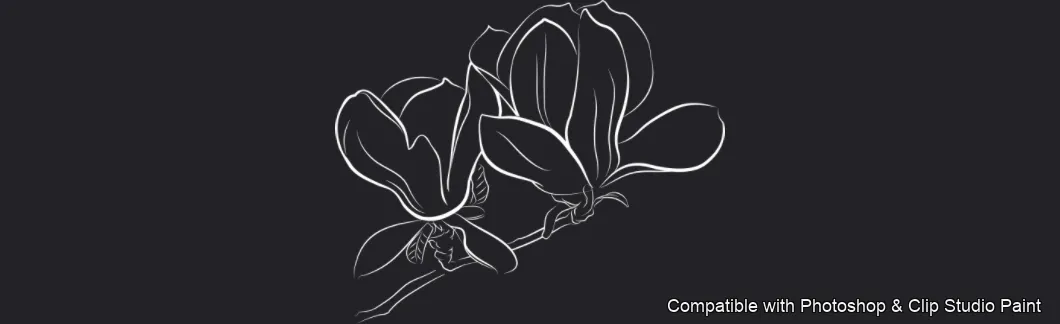
A floral line art stamp set featuring elegant magnolia blossoms. Compatible with Adobe Photoshop CC 2020+.

Brushes
60
Works with
Photoshop & Clip Studio Paint
Download free — 60 brushes

Free download · one .abr file · works in Photoshop & Clip Studio Paint · email required

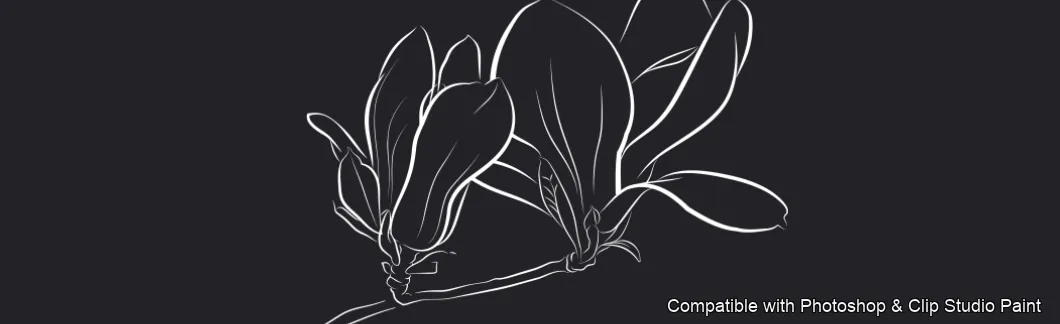
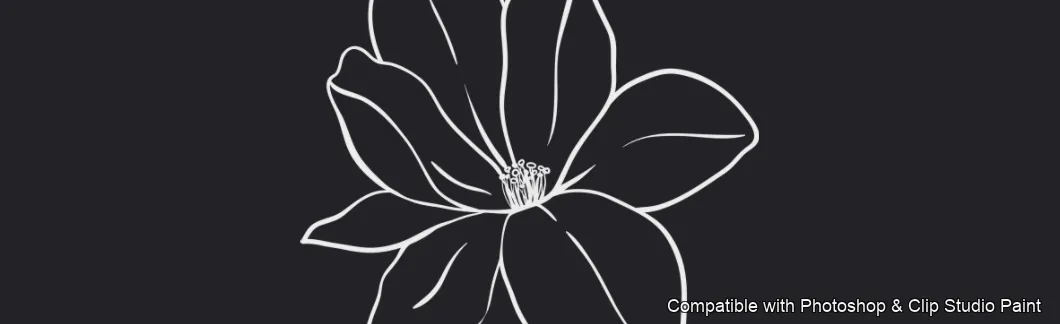
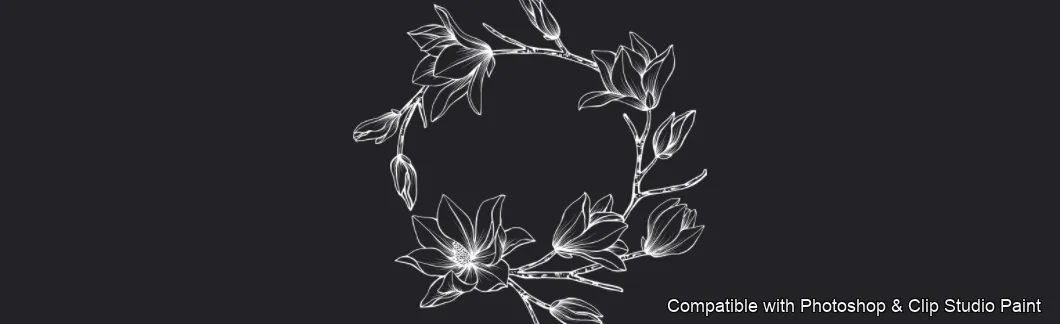
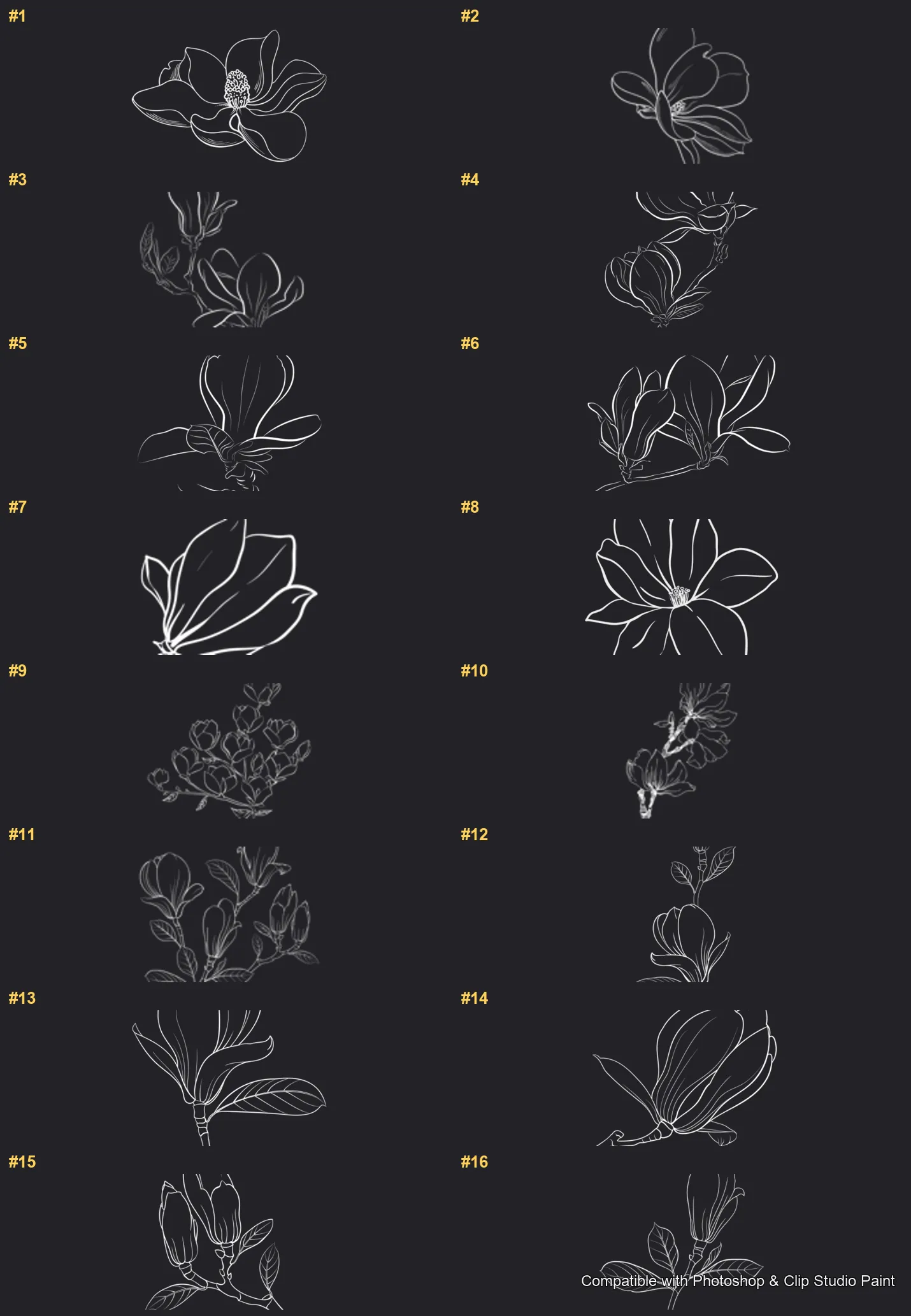
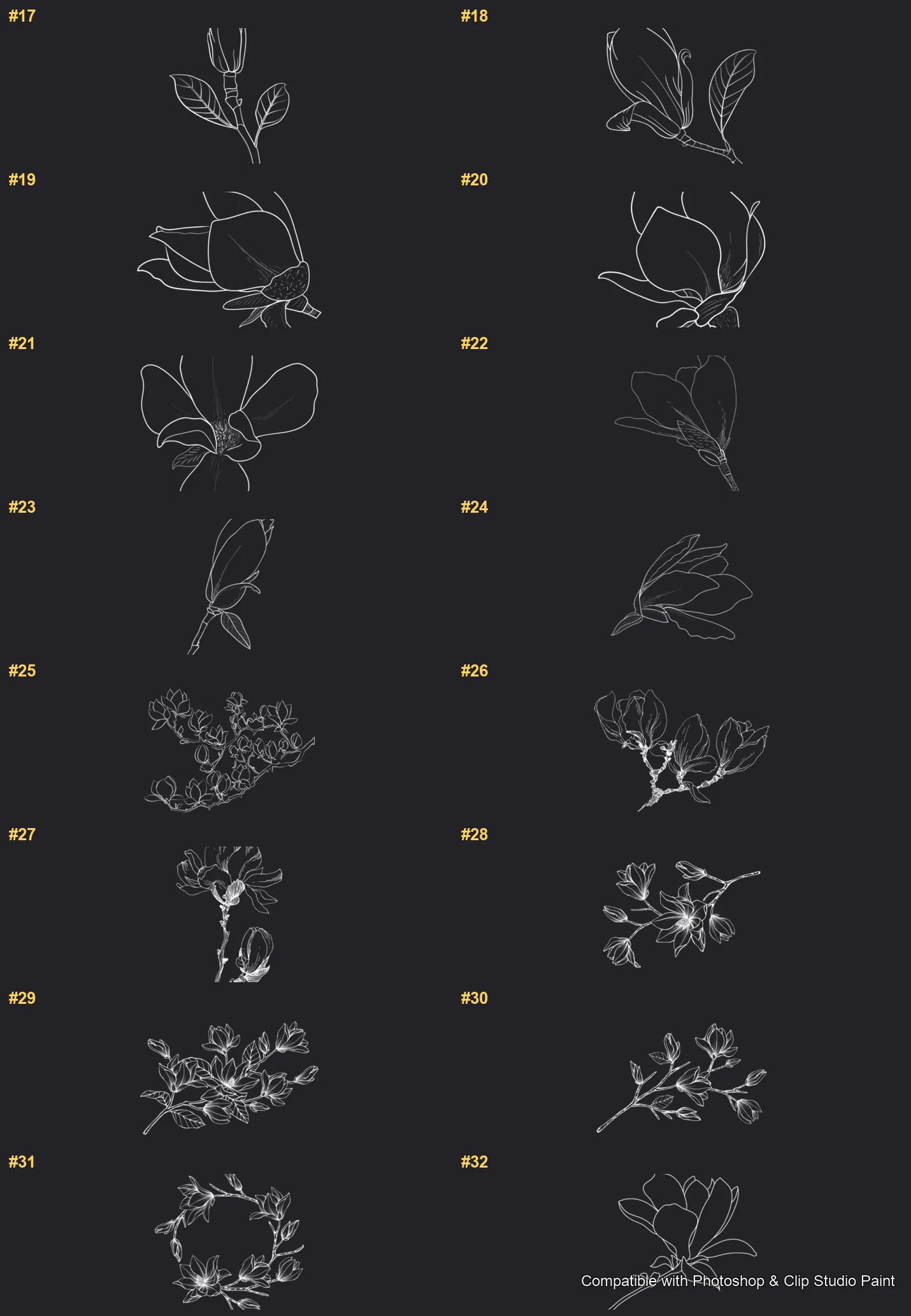
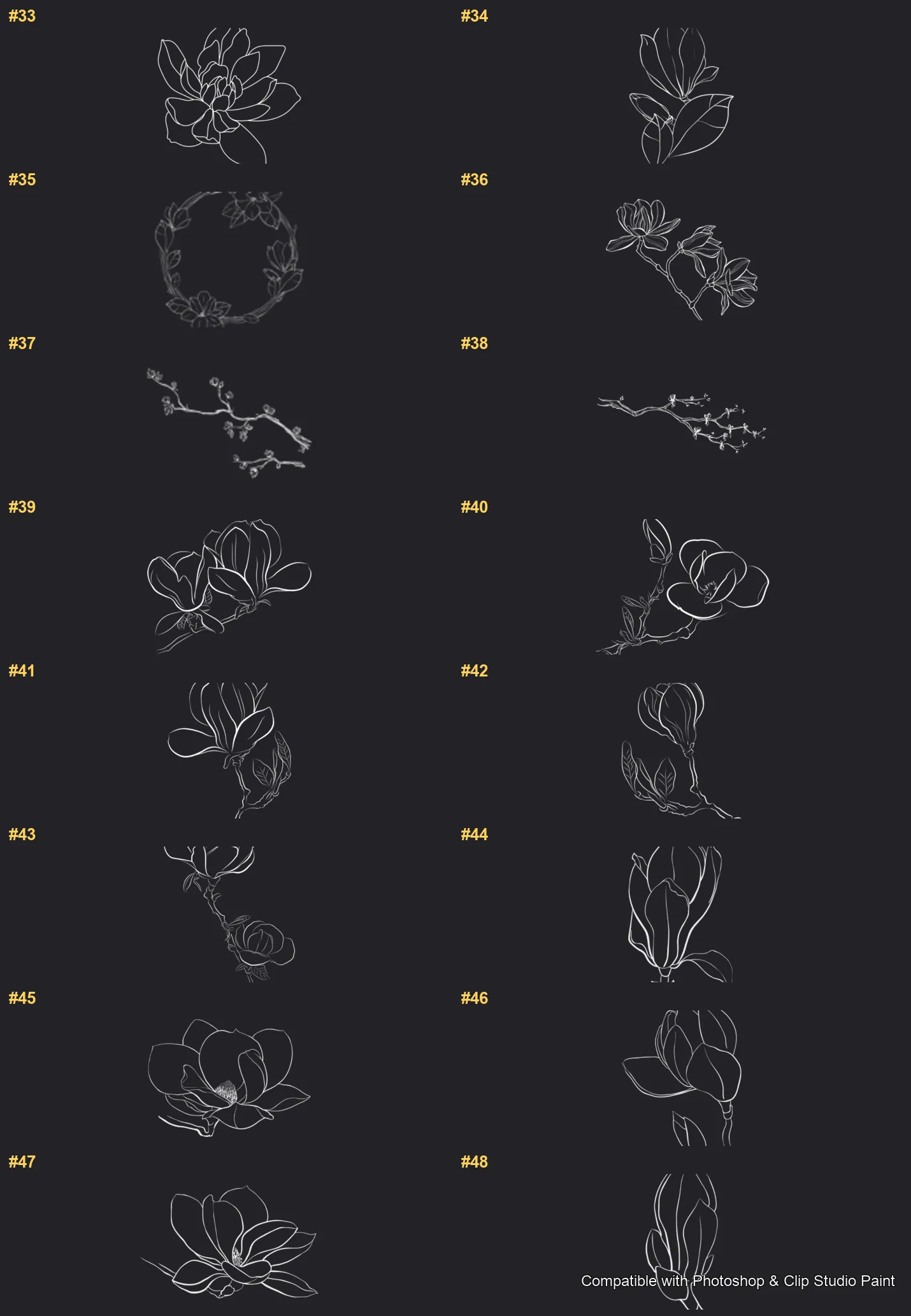
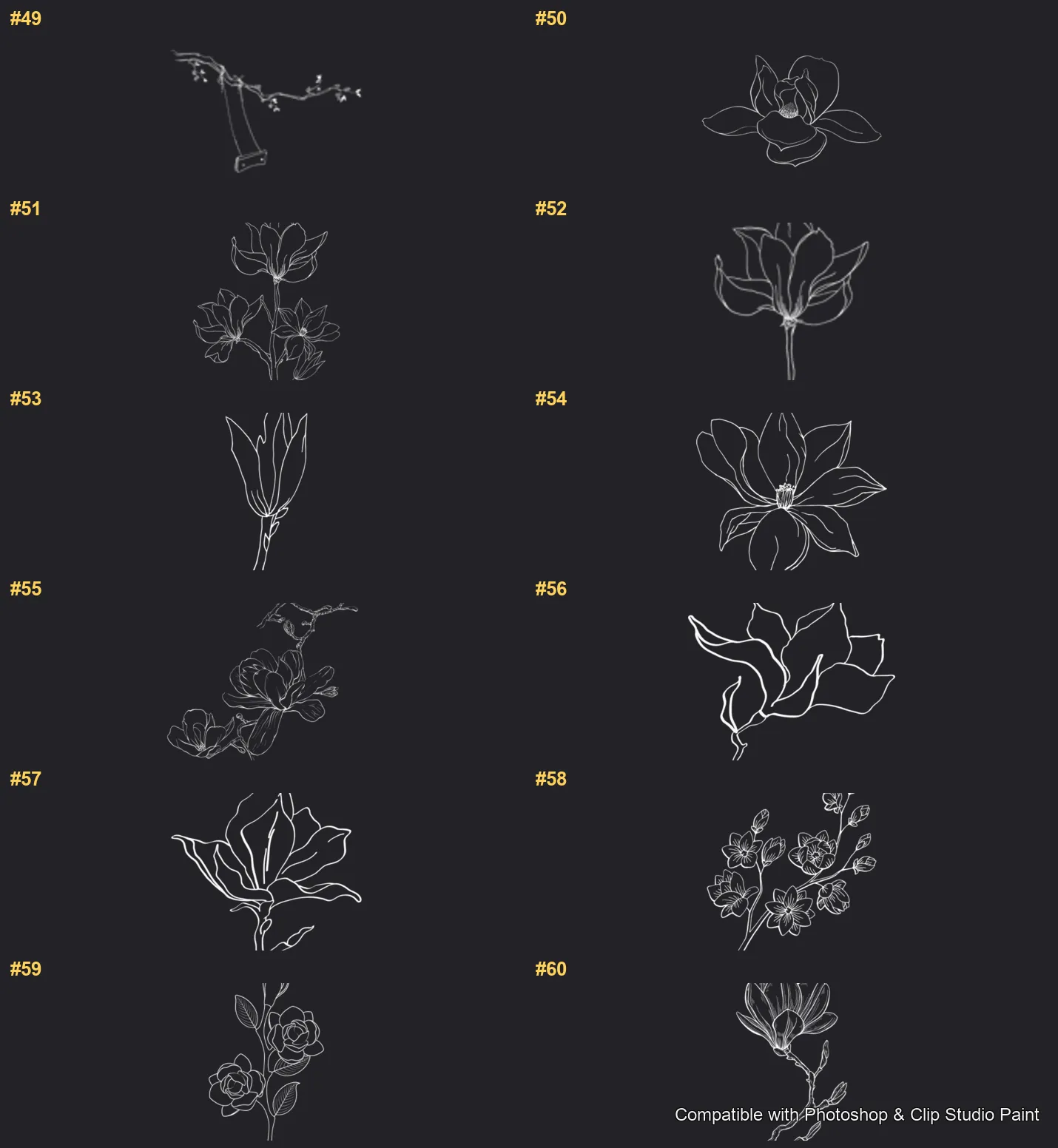
Create elegant magnolia blossoms and branches in Photoshop and Clip Studio Paint with the Magnolia Bloom stamp set! Made for botanical and wedding illustrators, lettering and card artists, pattern and surface designers, and anyone who loves soft, graceful floral line art. 🎨 What’s inside: 📁 60 stamp brushes in Photoshop format (.abr) — also import directly into Clip Studio Paint 💡 Why you’ll love it: • – 60 Magnolia Stamps: A complete collection — open blooms, side-view flowers, buds and bud sprigs, leafy branches and sprays, blossom clusters and twigs, plus floral wreaths and arrangement pieces to build full compositions. • – Bloom Fast: Stamp a finished flower or branch and recolor it, rather than drawing every petal by hand. • – Easy to Use: Simple to install and paint with, whether you're new or experienced. • – Graceful Results: Soft, elegant magnolia line art for cards, patterns and bouquets. • – Download Now: Be creating within minutes! 🖌️ Brushes compatible: ✅ Adobe Photoshop (CC and newer) — .abr brush file ✅ Clip Studio Paint (ver. 1.10.5 or later) — imports the same .abr ✅ Works on both desktop and iPad 🛠️ How to install: • Photoshop — double-click the .abr file (or Brushes panel → menu → Import Brushes). • Clip Studio Paint — drag the .abr onto the Sub Tool palette. 📥 Instant digital download — start drawing better today!

Every brush in Magnolia Bloom

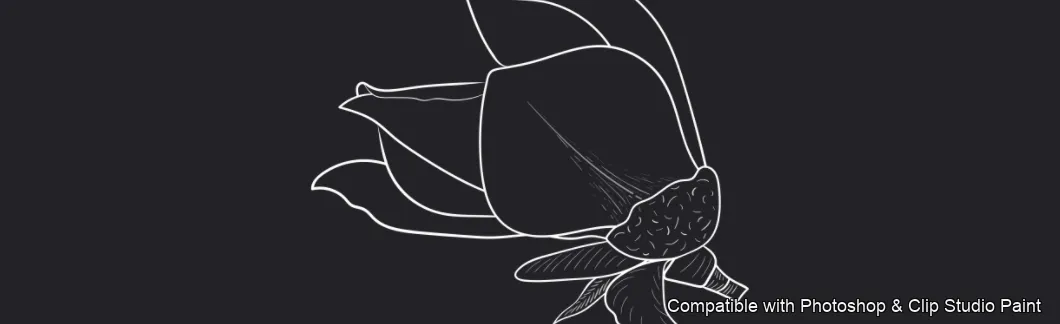
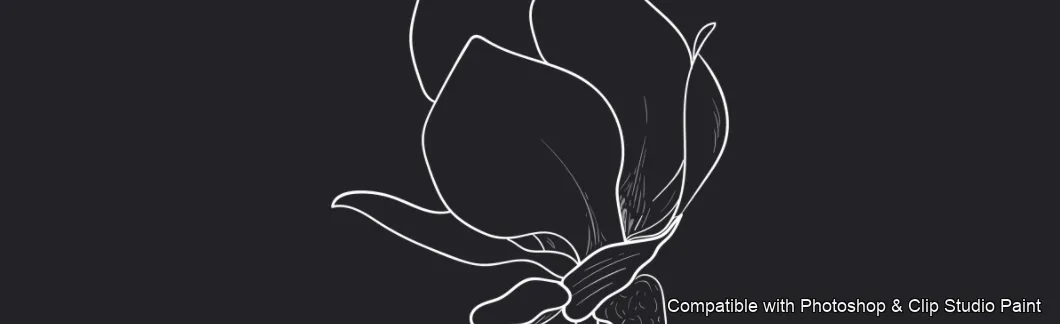
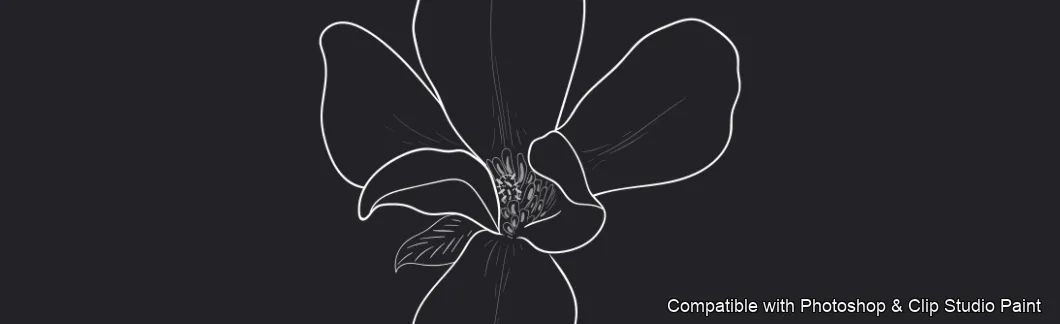
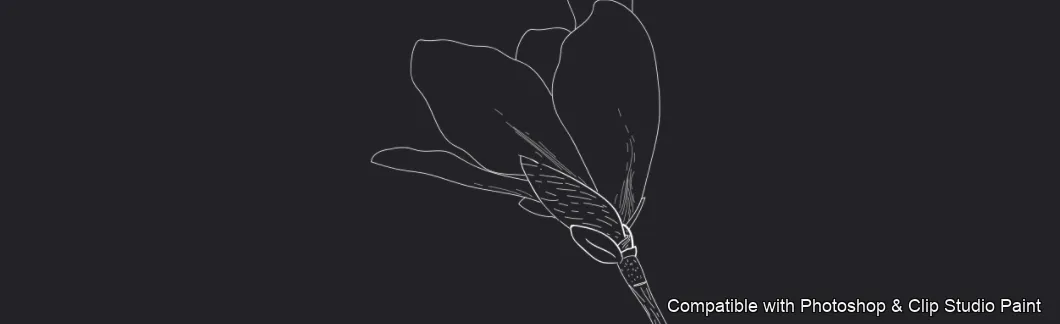
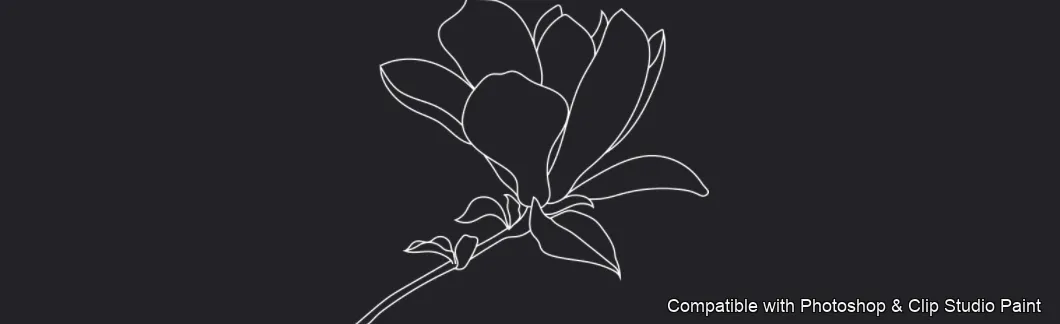
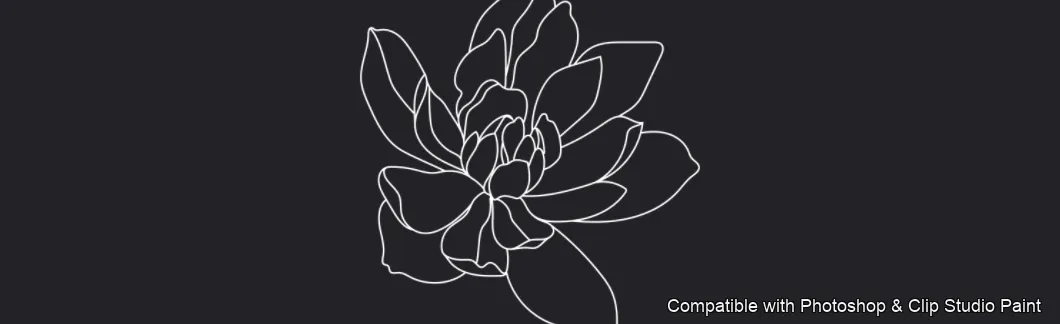
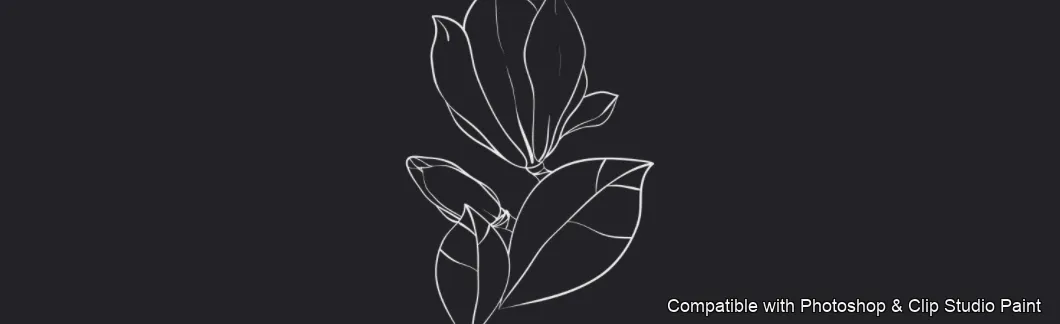
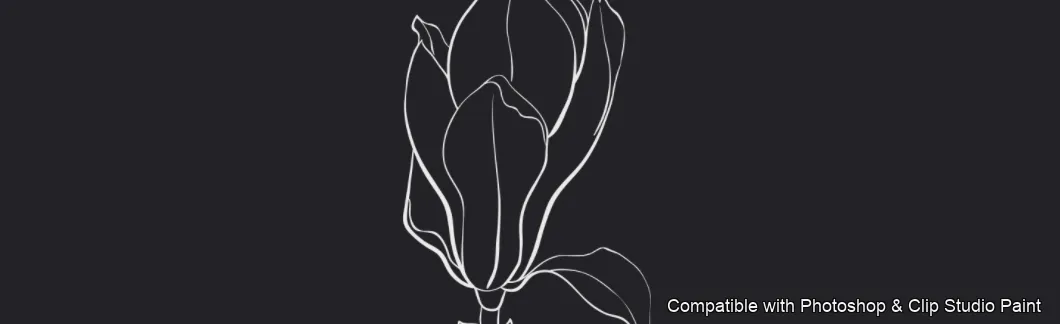
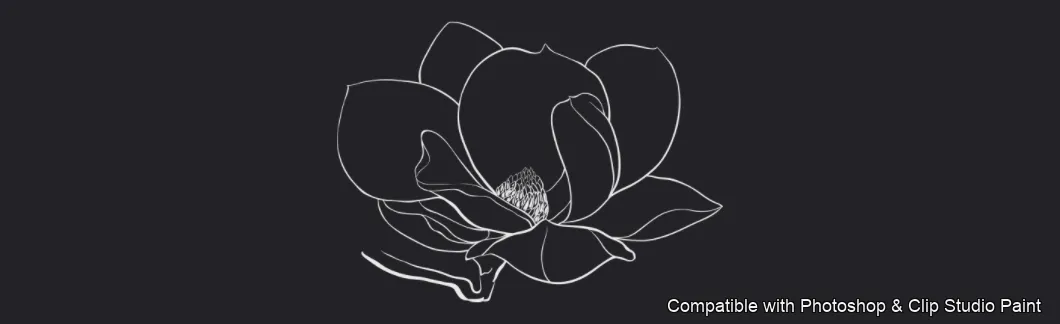
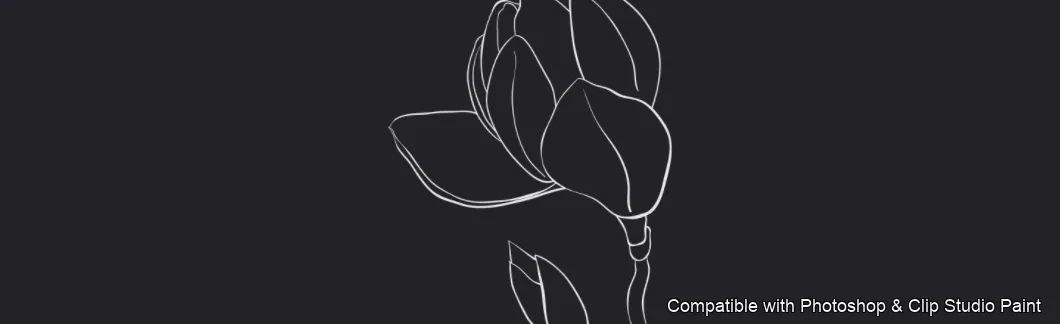
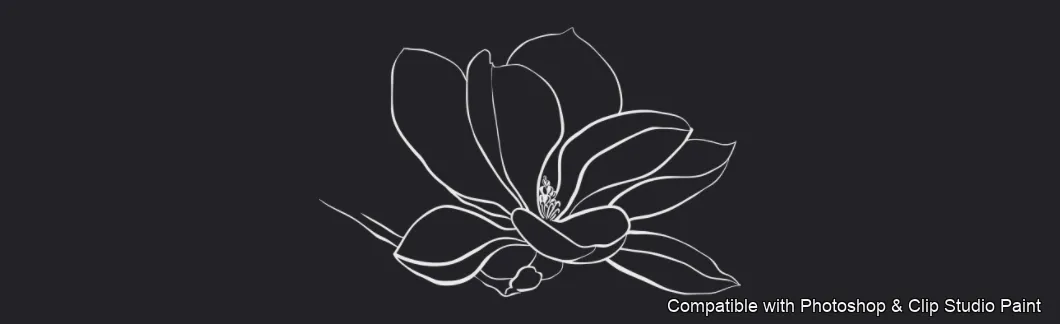
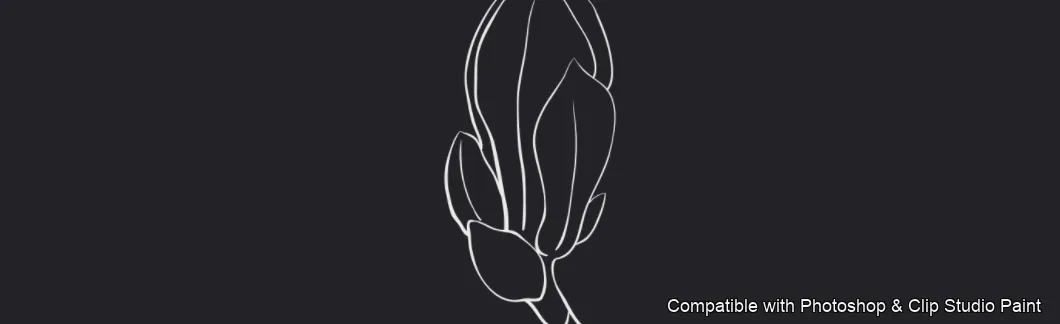
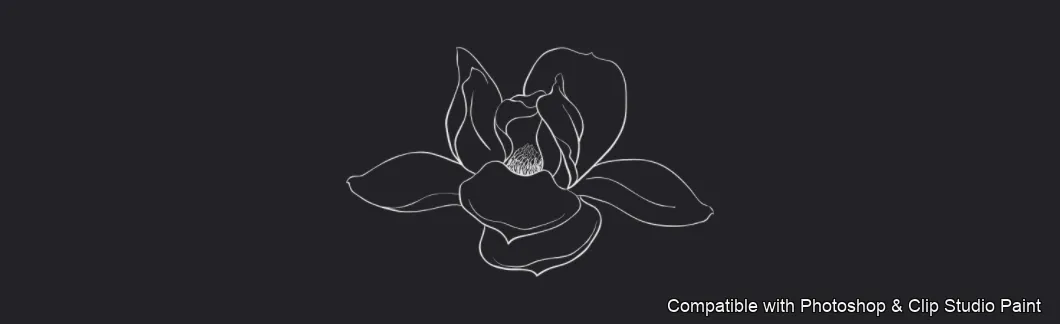
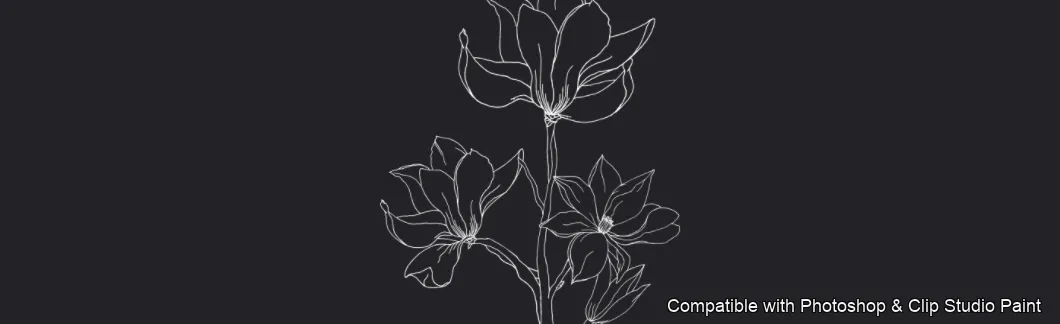
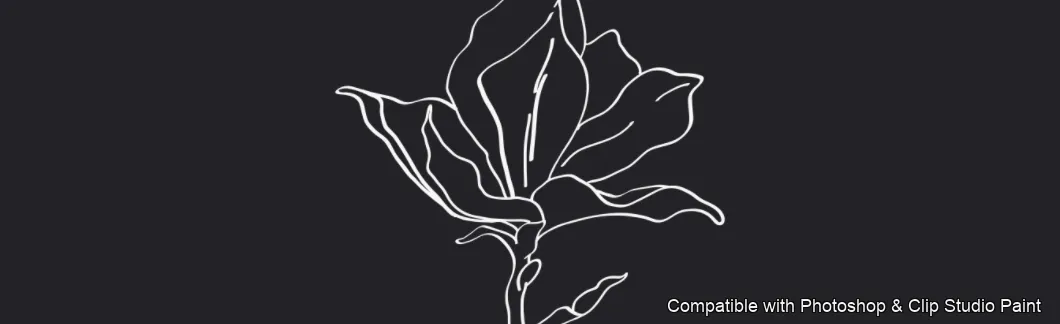
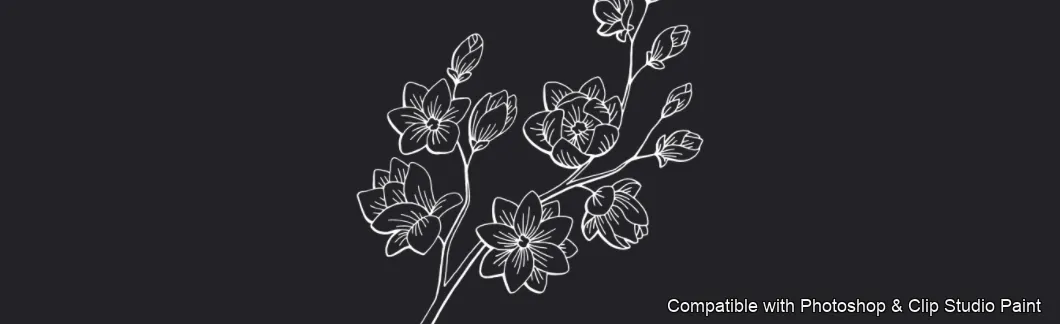
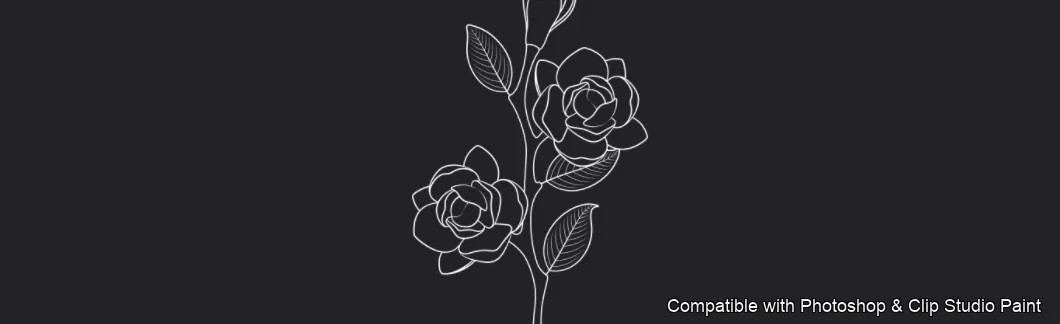
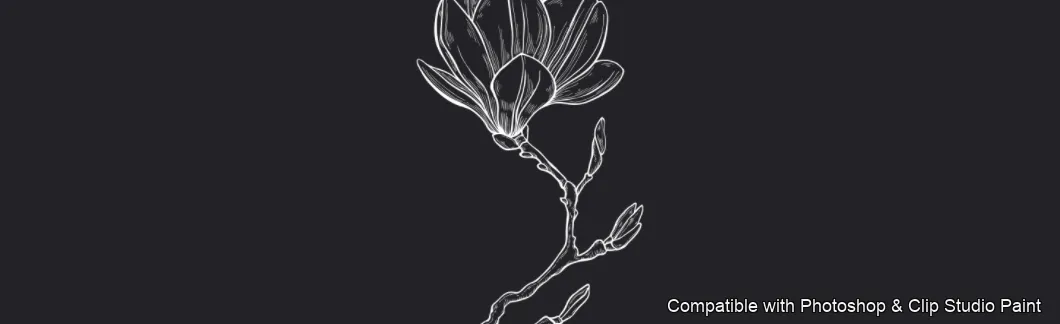
60 individual brush previews — see the exact stroke before you download.
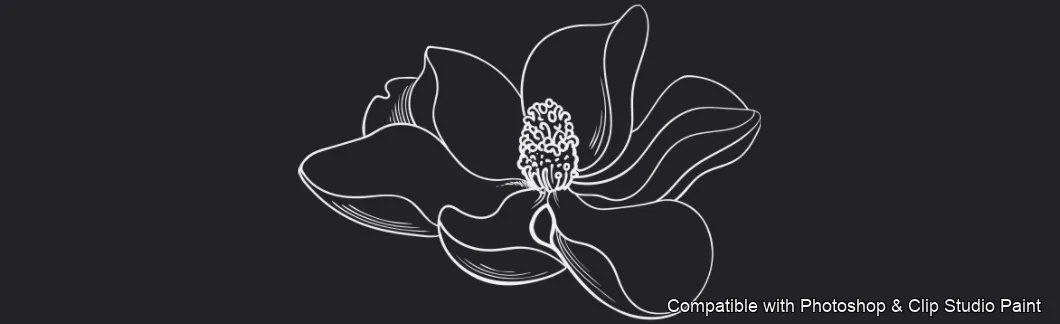
Magnolia Bloom brush 1 of 60 — Photoshop & Clip Studio Paint .abr preview
Magnolia Bloom brush 2 of 60 — Photoshop & Clip Studio Paint .abr preview
Magnolia Bloom brush 3 of 60 — Photoshop & Clip Studio Paint .abr preview
Magnolia Bloom brush 4 of 60 — Photoshop & Clip Studio Paint .abr preview
Magnolia Bloom brush 5 of 60 — Photoshop & Clip Studio Paint .abr preview
Magnolia Bloom brush 6 of 60 — Photoshop & Clip Studio Paint .abr preview
Magnolia Bloom brush 7 of 60 — Photoshop & Clip Studio Paint .abr preview
Magnolia Bloom brush 8 of 60 — Photoshop & Clip Studio Paint .abr preview
Magnolia Bloom brush 9 of 60 — Photoshop & Clip Studio Paint .abr preview
Magnolia Bloom brush 10 of 60 — Photoshop & Clip Studio Paint .abr preview
Magnolia Bloom brush 11 of 60 — Photoshop & Clip Studio Paint .abr preview
Magnolia Bloom brush 12 of 60 — Photoshop & Clip Studio Paint .abr preview
Magnolia Bloom brush 13 of 60 — Photoshop & Clip Studio Paint .abr preview
Magnolia Bloom brush 14 of 60 — Photoshop & Clip Studio Paint .abr preview
Magnolia Bloom brush 15 of 60 — Photoshop & Clip Studio Paint .abr preview
Magnolia Bloom brush 16 of 60 — Photoshop & Clip Studio Paint .abr preview
Magnolia Bloom brush 17 of 60 — Photoshop & Clip Studio Paint .abr preview
Magnolia Bloom brush 18 of 60 — Photoshop & Clip Studio Paint .abr preview
Magnolia Bloom brush 19 of 60 — Photoshop & Clip Studio Paint .abr preview
Magnolia Bloom brush 20 of 60 — Photoshop & Clip Studio Paint .abr preview
Magnolia Bloom brush 21 of 60 — Photoshop & Clip Studio Paint .abr preview
Magnolia Bloom brush 22 of 60 — Photoshop & Clip Studio Paint .abr preview
Magnolia Bloom brush 23 of 60 — Photoshop & Clip Studio Paint .abr preview
Magnolia Bloom brush 24 of 60 — Photoshop & Clip Studio Paint .abr preview
Magnolia Bloom brush 25 of 60 — Photoshop & Clip Studio Paint .abr preview
Magnolia Bloom brush 26 of 60 — Photoshop & Clip Studio Paint .abr preview
Magnolia Bloom brush 27 of 60 — Photoshop & Clip Studio Paint .abr preview
Magnolia Bloom brush 28 of 60 — Photoshop & Clip Studio Paint .abr preview
Magnolia Bloom brush 29 of 60 — Photoshop & Clip Studio Paint .abr preview
Magnolia Bloom brush 30 of 60 — Photoshop & Clip Studio Paint .abr preview
Magnolia Bloom brush 31 of 60 — Photoshop & Clip Studio Paint .abr preview
Magnolia Bloom brush 32 of 60 — Photoshop & Clip Studio Paint .abr preview
Magnolia Bloom brush 33 of 60 — Photoshop & Clip Studio Paint .abr preview
Magnolia Bloom brush 34 of 60 — Photoshop & Clip Studio Paint .abr preview
Magnolia Bloom brush 35 of 60 — Photoshop & Clip Studio Paint .abr preview
Magnolia Bloom brush 36 of 60 — Photoshop & Clip Studio Paint .abr preview
Magnolia Bloom brush 37 of 60 — Photoshop & Clip Studio Paint .abr preview
Magnolia Bloom brush 38 of 60 — Photoshop & Clip Studio Paint .abr preview
Magnolia Bloom brush 39 of 60 — Photoshop & Clip Studio Paint .abr preview
Magnolia Bloom brush 40 of 60 — Photoshop & Clip Studio Paint .abr preview
Magnolia Bloom brush 41 of 60 — Photoshop & Clip Studio Paint .abr preview
Magnolia Bloom brush 42 of 60 — Photoshop & Clip Studio Paint .abr preview
Magnolia Bloom brush 43 of 60 — Photoshop & Clip Studio Paint .abr preview
Magnolia Bloom brush 44 of 60 — Photoshop & Clip Studio Paint .abr preview
Magnolia Bloom brush 45 of 60 — Photoshop & Clip Studio Paint .abr preview
Magnolia Bloom brush 46 of 60 — Photoshop & Clip Studio Paint .abr preview
Magnolia Bloom brush 47 of 60 — Photoshop & Clip Studio Paint .abr preview
Magnolia Bloom brush 48 of 60 — Photoshop & Clip Studio Paint .abr preview
Magnolia Bloom brush 49 of 60 — Photoshop & Clip Studio Paint .abr preview
Magnolia Bloom brush 50 of 60 — Photoshop & Clip Studio Paint .abr preview
Magnolia Bloom brush 51 of 60 — Photoshop & Clip Studio Paint .abr preview
Magnolia Bloom brush 52 of 60 — Photoshop & Clip Studio Paint .abr preview
Magnolia Bloom brush 53 of 60 — Photoshop & Clip Studio Paint .abr preview
Magnolia Bloom brush 54 of 60 — Photoshop & Clip Studio Paint .abr preview
Magnolia Bloom brush 55 of 60 — Photoshop & Clip Studio Paint .abr preview
Magnolia Bloom brush 56 of 60 — Photoshop & Clip Studio Paint .abr preview
Magnolia Bloom brush 57 of 60 — Photoshop & Clip Studio Paint .abr preview
Magnolia Bloom brush 58 of 60 — Photoshop & Clip Studio Paint .abr preview
Magnolia Bloom brush 59 of 60 — Photoshop & Clip Studio Paint .abr preview
Magnolia Bloom brush 60 of 60 — Photoshop & Clip Studio Paint .abr preview

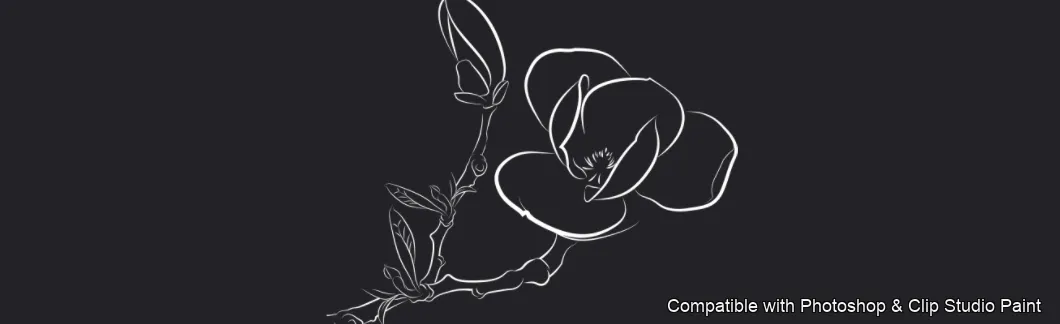
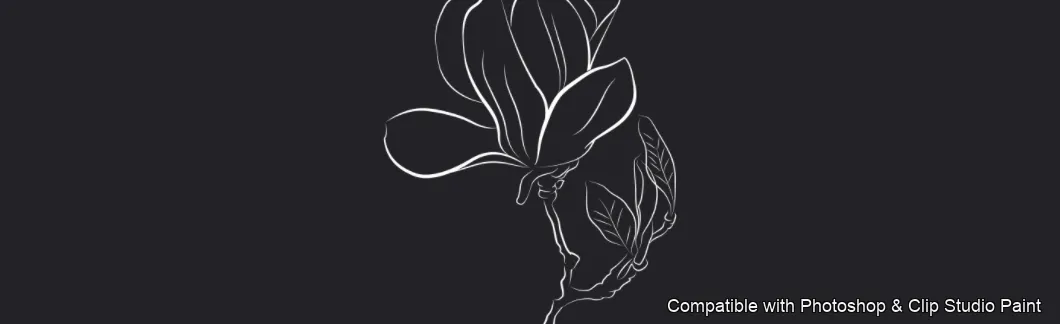
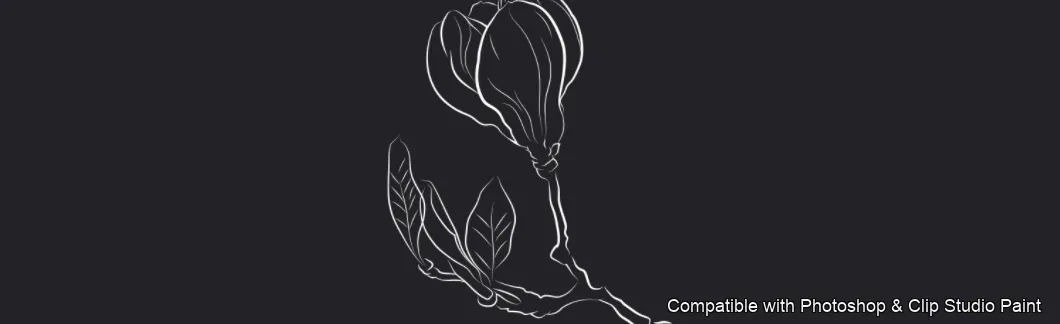
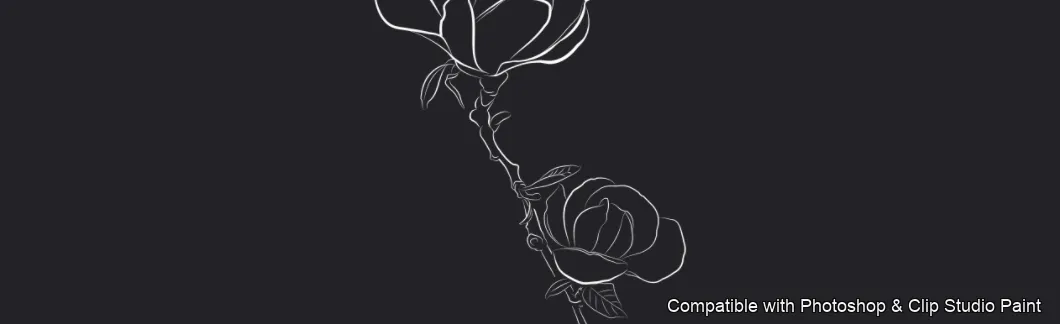
Full brush overview

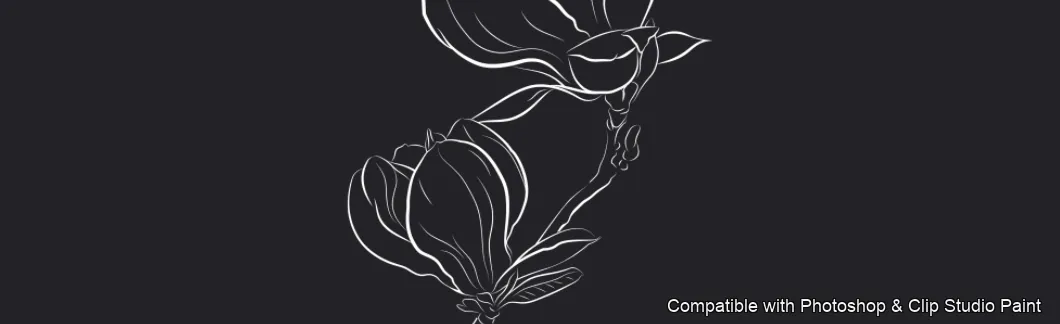
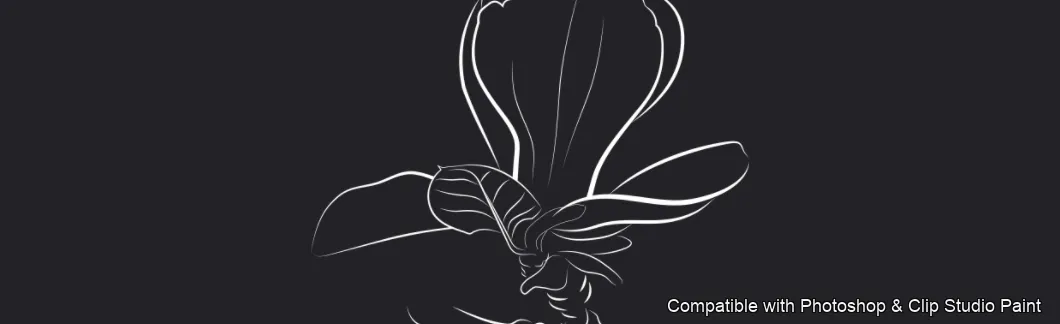
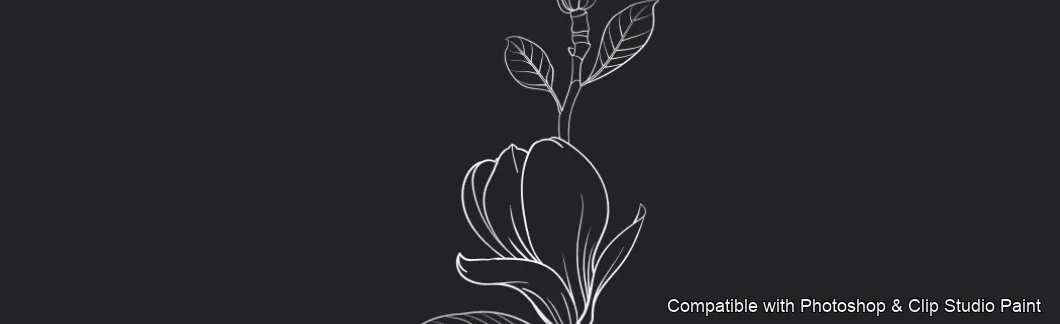
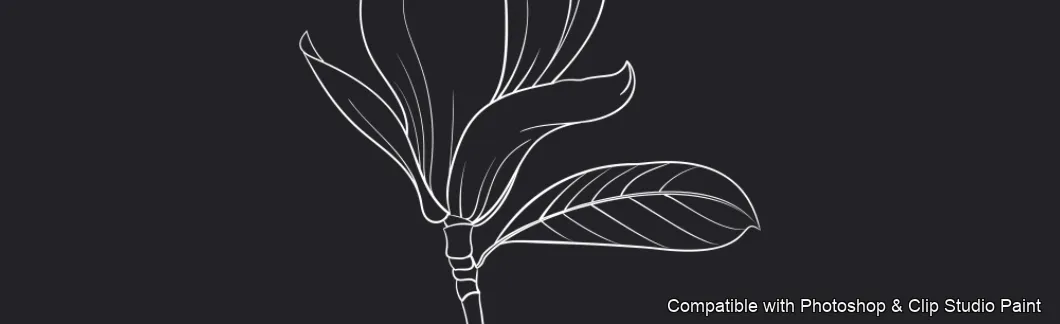
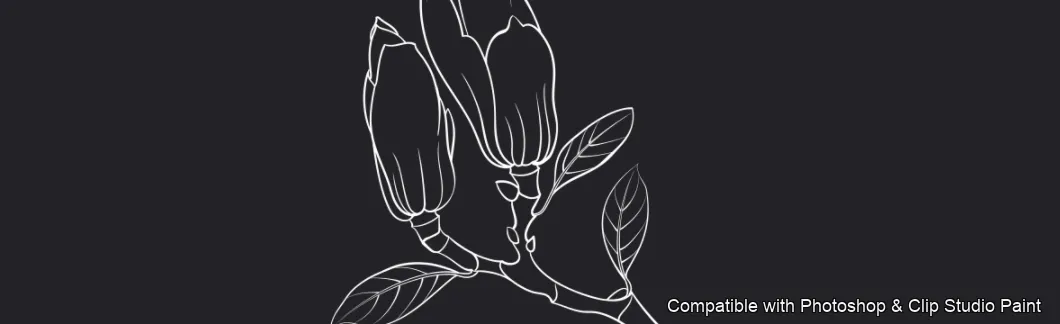
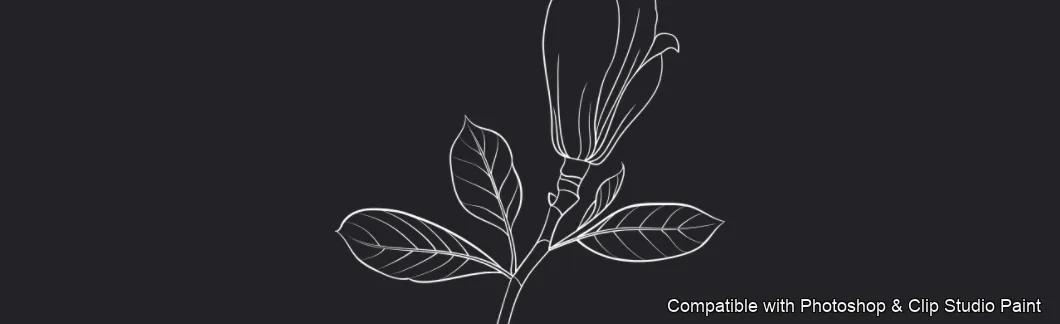
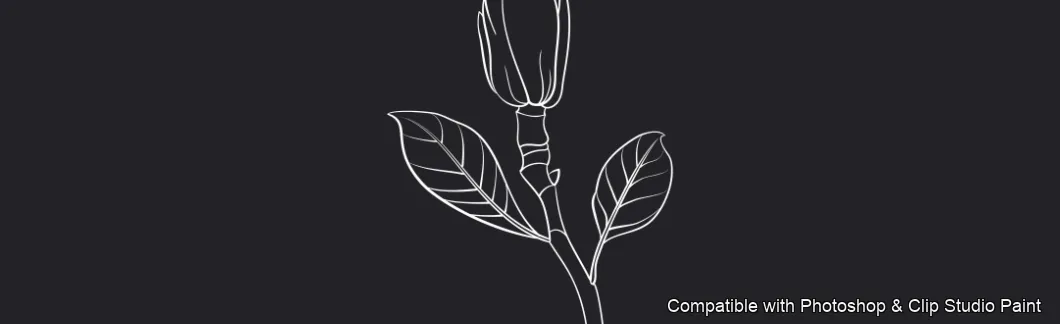
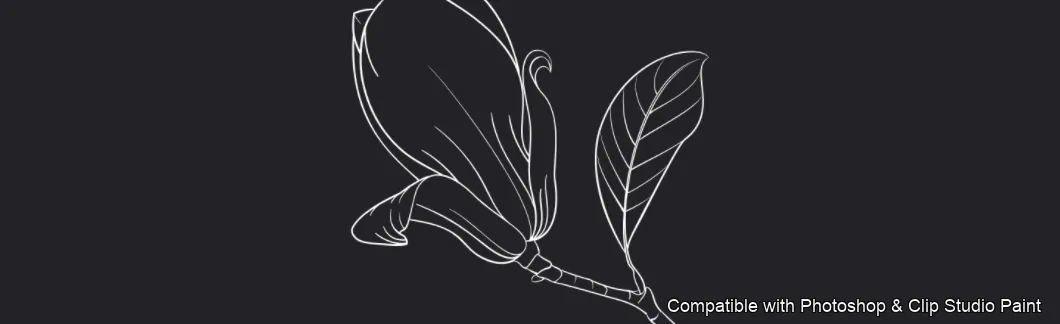
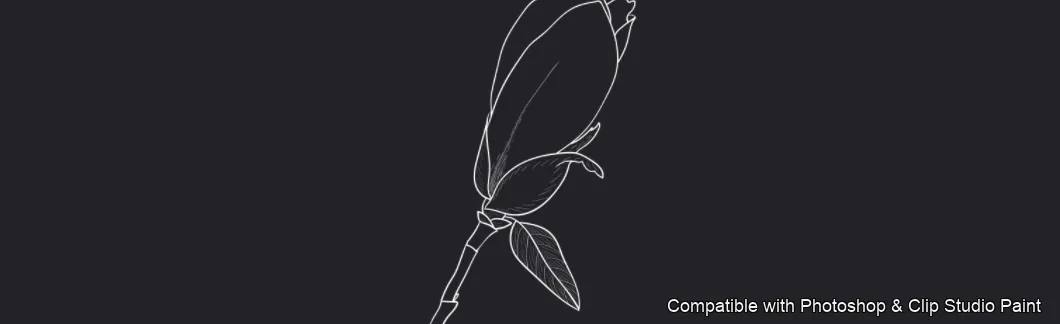
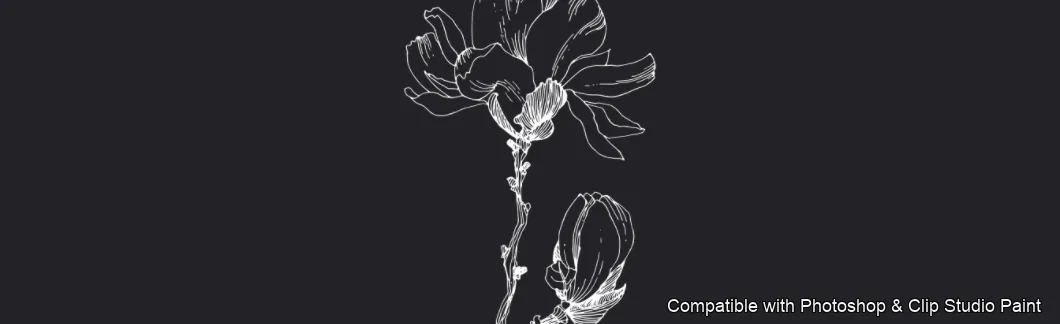
Magnolia Bloom Photoshop & Clip Studio Paint brushes overview sheet 1
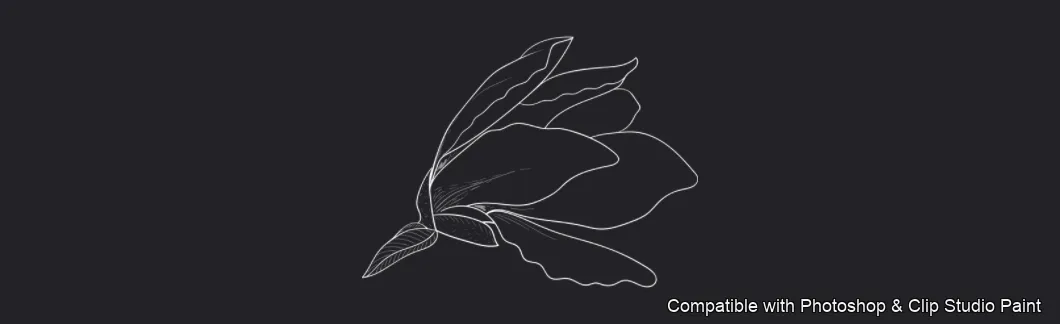
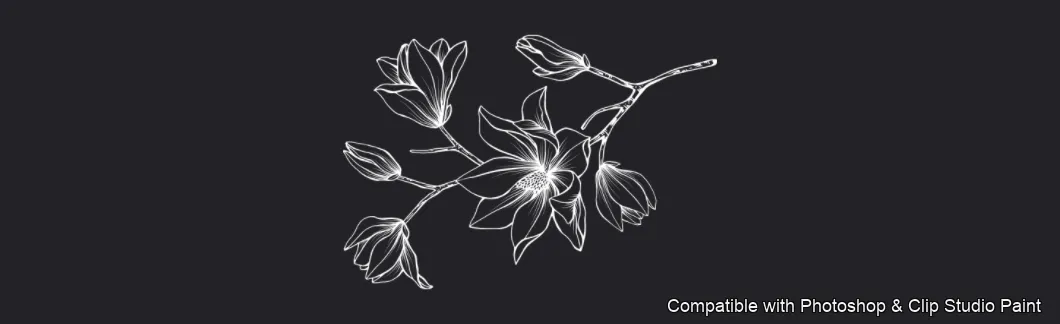
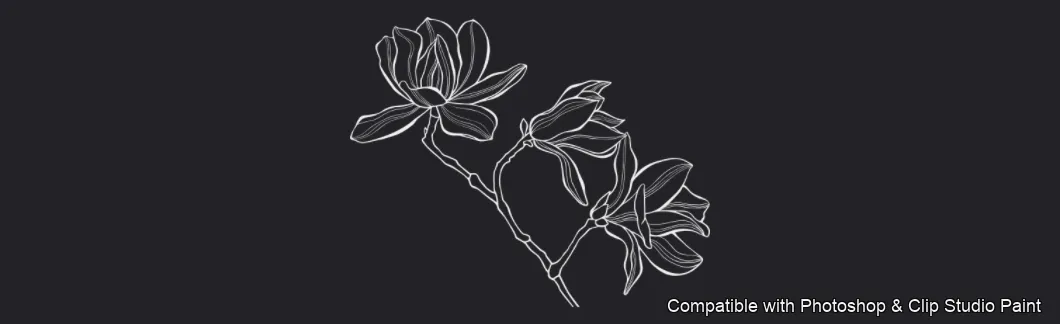
Magnolia Bloom Photoshop & Clip Studio Paint brushes overview sheet 2
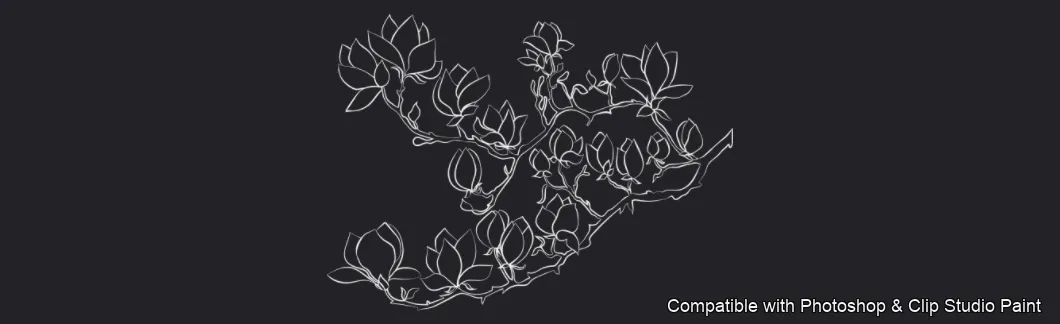
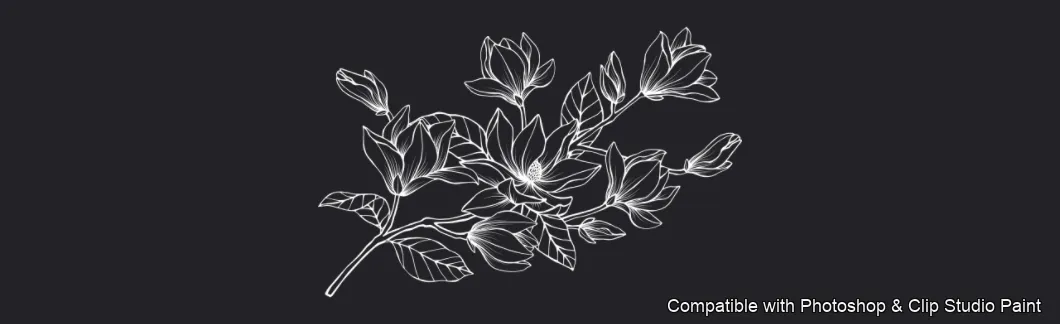
Magnolia Bloom Photoshop & Clip Studio Paint brushes overview sheet 3
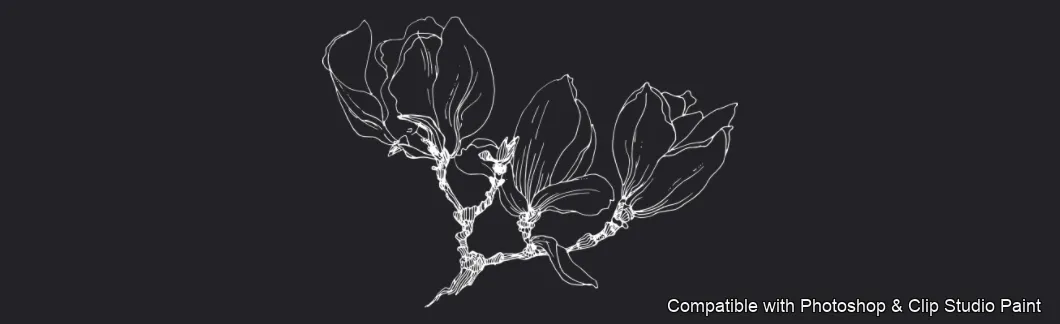
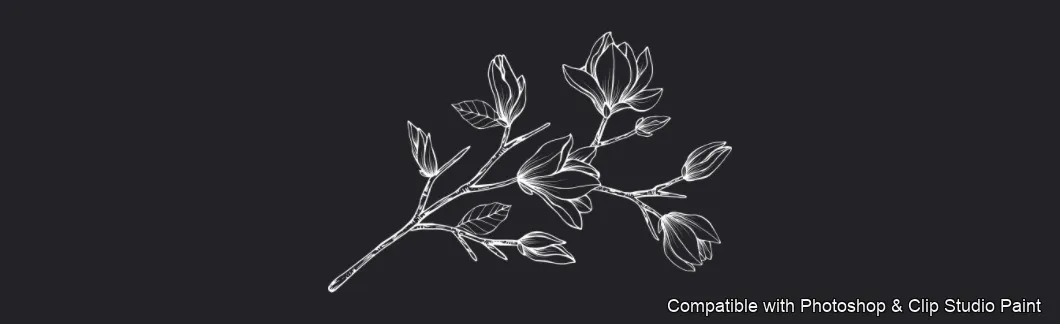
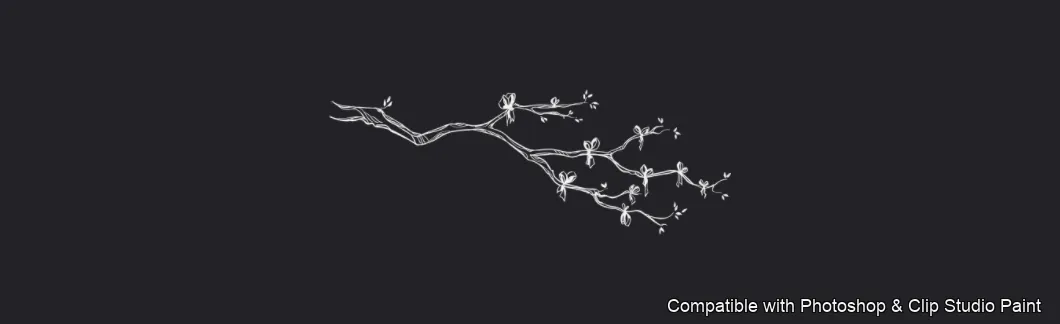
Magnolia Bloom Photoshop & Clip Studio Paint brushes overview sheet 4

How to install

In Adobe Photoshop

Double-click the .abr file to load it — or open the Brushes panel, click the menu and choose Import Brushes. Works on CC and newer, PC & Mac.
In Clip Studio Paint

Drag the same .abr file onto the Sub Tool palette and Clip Studio imports it as new brushes. Works on version 1.10.5 or later.

Magnolia Bloom — FAQ

How much does the Magnolia Bloom pack cost?+

Free — Magnolia Bloom is a free download with no payment and no subscription. The .abr loads straight into Photoshop or Clip Studio Paint.

How many brushes are in the Magnolia Bloom pack?+

The Magnolia Bloom set includes 60 brushes — open blooms and side-view flowers.

Does it work in both Photoshop and Clip Studio Paint?+

Yes. You get a single .abr file — the same file imports into Adobe Photoshop (CC and newer) and Clip Studio Paint (1.10.5 or later). One purchase covers both apps, on PC and Mac.

What file format do I get?+

An Adobe Photoshop .abr brush file. In Photoshop, double-click it (or Brushes panel → menu → Import Brushes). In Clip Studio Paint, drag the .abr onto the Sub Tool palette.

Do these work on Procreate?+

Magnolia Bloom is the desktop .abr edition for Photoshop and Clip Studio Paint. Many of our sets also come as Procreate .brushset editions — browse the Procreate catalog to check.
Browse this style